Computer ScienceUnit 410 min read
Computer Software & Operating System: Types, Functions & OS Basics
Unit 4 of Computer Science explores the two core pillars of computer systems: software (system vs. application) and operating systems (functions, types, and real-world examples like Windows, Linux). You’ll learn how software manages hardware, how OS acts as an interface, and how different OS types (batch, time-sharing,
mindmap
  root((Computer Software))
    System Software
      OS["Operating System (OS)"]
        Functions["Manages hardware, software, users"]
        Types["Batch, Time-sharing, Real-time, Distributed"]
      Utility Software["Antivirus, Disk Cleanup, Compression"]
    Application Software
      Word Processors["MS Word, LibreOffice"]
      Spreadsheets["Excel, Calc"]
      Databases["MySQL, Access"]
      Multimedia["VLC, Photoshop"]
What is Computer Software?
Software is a set of instructions or programs that tell the computer what to do. Unlike hardware (physical parts like CPU, monitor), software is non-tangible but essential for running tasks.
Types of Software
Software is divided into two main categories:
| System Software | Application Software |
|---|---|
| Manages computer hardware/software | Performs specific tasks for users |
| Examples: OS, drivers, compilers | Examples: MS Word, Excel, games |
| Runs in the background | Runs when user opens it |
| No direct user interaction | Direct user interaction |
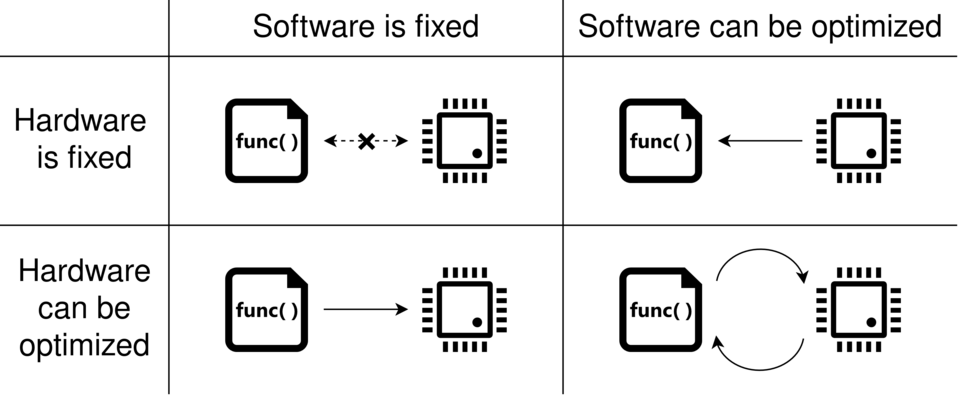 Hardware vs. Software: What’s the difference? (Image: FrancezcoPezce, CC0, via Wikimedia Commons)
Operating System (OS): The Brain of the Computer
An Operating System (OS) is the most important system software that:
- Acts as an interface between hardware and software.
- Manages memory, processes, and security.
- Provides a user-friendly environment (GUI or CLI).
Key Functions of an OS
flowchart TD
  A["OS Functions"] --> B["Process Management"]
  A --> C["Memory Management"]
  A --> D["Device Management"]
  A --> E["File Management"]
  A --> F["Security & User Interface"]
  B --> B1["Creates, schedules, terminates processes"]
  C --> C1["Allocates RAM to programs"]
  D --> D1["Controls printers, keyboards, etc."]
  E --> E1["Organizes files in folders"]
  F --> F1["Provides login, permissions, GUI/CLI"]
Types of Operating Systems
OS can be classified based on how they handle tasks and users:
| Type | Definition | Examples | Advantages | Disadvantages |
|---|---|---|---|---|
| Batch OS | Executes jobs in groups (no interaction) | Old mainframe systems | Efficient for bulk tasks | Slow response, no user control |
| Time-Sharing OS | Multiple users share CPU time | Unix, early Linux | Supports multitasking | Requires powerful hardware |
| Real-Time OS | Responds to inputs instantly | Embedded systems (traffic lights) | Ultra-fast, predictable | Expensive, limited flexibility |
| Distributed OS | Manages multiple computers as one | Cloud OS (AWS, Google Cloud) | High reliability, scalability | Complex setup, security risks |
| Multitasking OS | Runs multiple programs simultaneously | Windows, macOS, Linux | Productive, efficient resource use | May slow down with too many tasks |
Popular Operating Systems
Here are some widely used OS with their key features:
| OS Name | Type | Used On | Key Features |
|---|---|---|---|
| Windows | Multitasking, GUI | PCs, Laptops | User-friendly, large software support |
| Linux | Multitasking, CLI/GUI | Servers, Supercomputers | Open-source, highly customizable |
| macOS | Multitasking, GUI | Apple Macs | Seamless hardware-software integration |
| Android | Mobile OS | Smartphones, Tablets | Touchscreen optimized, Google services |
| iOS | Mobile OS | iPhones, iPads | Secure, Apple ecosystem integration |
How an OS Works: A Step-by-Step Example
Let’s trace what happens when you open Microsoft Word in Windows:
- User Request: You double-click the Word icon.
- OS Scheduler: The OS checks if Word is already running (if not, it loads it from storage).
- Memory Allocation: The OS assigns RAM to Word.
- CPU Time: The OS gives CPU time to Word for processing.
- Device Handling: If you print a document, the OS sends the command to the printer driver.
- User Interface: The OS displays the Word window on the screen.
sequenceDiagram
  participant User
  participant OS
  participant Word
  participant CPU
  participant RAM
  participant Printer

  User->>OS: Double-clicks Word
  OS->>RAM: Allocates memory
  OS->>CPU: Assigns processing time
  CPU->>Word: Executes instructions
  Word->>Printer: Sends print command (via OS)
  OS->>Printer: Handles printing
  Printer-->>User: Outputs document
System Software vs. Application Software: Comparison
| Feature | System Software | Application Software |
|---|---|---|
| Purpose | Manages computer operations | Performs specific tasks for users |
| Examples | Windows, Linux, Antivirus | MS Excel, Photoshop, Games |
| User Interaction | Works in background | Requires user input |
| Dependence | Required for computer to function | Runs on top of system software |
| Updates | Critical for security/stability | Optional (new features/tools) |
NEB Exam-Style Questions & Solutions
Short Answer Questions (SAQ)
Q1: Define an operating system. List any two functions of an OS. Answer: An Operating System (OS) is system software that acts as an interface between hardware and software, managing system resources efficiently.
Two functions of an OS:
- Process Management: Creates, schedules, and terminates processes.
- Memory Management: Allocates RAM to different programs to prevent conflicts.
Q2: Differentiate between batch OS and time-sharing OS. Answer:
| Batch OS | Time-Sharing OS |
|---|---|
| Jobs are executed in groups (no interaction). | Multiple users share CPU simultaneously. |
| Used in old mainframe systems. | Used in modern computers (Unix, Linux). |
| No user interaction during execution. | Interactive (users can switch tasks). |
Long Answer Questions (LAQ)
Q3: Explain the types of operating systems with examples. Also, mention one advantage and one disadvantage of each. Answer: Operating systems are classified based on their functionality and usage:
Batch OS
- Definition: Executes jobs in groups (batches) without user interaction.
- Example: Old IBM mainframe systems.
- Advantage: Efficient for bulk processing.
- Disadvantage: No real-time interaction; slow response.
Time-Sharing OS
- Definition: Allows multiple users to share CPU time.
- Example: Unix, early Linux.
- Advantage: Supports multitasking.
- Disadvantage: Requires powerful hardware.
Real-Time OS (RTOS)
- Definition: Responds to inputs instantly (critical for time-sensitive tasks).
- Example: Embedded systems (traffic lights, medical devices).
- Advantage: Ultra-fast and predictable.
- Disadvantage: Expensive; limited flexibility.
Distributed OS
- Definition: Manages multiple computers as a single system.
- Example: Cloud OS (AWS, Google Cloud).
- Advantage: High reliability and scalability.
- Disadvantage: Complex setup; security risks.
Practical/Application-Based Question
Q4: Suppose you are using a computer with Windows OS. Explain the role of the OS when you:
- Open a document in MS Word.
- Print the document.
- Close the Word application.
Answer:
Opening MS Word:
- The OS loads Word from storage (HDD/SSD) into RAM.
- The scheduler assigns CPU time to Word.
- The GUI displays the Word window on the screen.
Printing the Document:
- When you click Print, the OS sends the command to the printer driver.
- The device manager ensures the printer is connected and ready.
- The OS handles the printing queue if multiple documents are waiting.
Closing Word:
- The OS terminates the Word process.
- It frees up RAM and CPU allocated to Word.
- The file system ensures any unsaved changes are prompted before closing.
Exam Tip: How to Score Full Marks in NEB Exams
✅ For Short Answers (SAQ):
- Define the term clearly (1 mark).
- Give concise examples (1 mark).
- Use bullet points for comparisons (e.g., Batch vs. Time-Sharing).
✅ For Long Answers (LAQ):
- Divide into sub-points (e.g., types of OS with examples).
- Include advantages/disadvantages (shows depth).
- Use diagrams/tables (if allowed) to visualize comparisons.
✅ For Practical Questions:
- Explain step-by-step how the OS handles each action.
- Mention specific OS components (scheduler, memory manager, device manager).
- Relate to real-world examples (Windows, Linux, etc.).
❌ Avoid:
- Vague answers (e.g., "OS manages everything").
- Copy-pasting without understanding.
- Forgetting to link theory with examples.
Final Reminder:
- OS is the backbone of computer systems—understand its functions and types deeply.
- Practice drawing flowcharts (e.g., OS functions, software types).
- Revise NEB past papers to see common question patterns.
Good luck! 🚀
Based on the NEB +2 Management syllabus for Computer Science (Comp), unit 4.
Discussion
Loading…