Computer ScienceUnit 112 min read
Computer System: Hardware, Software, Generations, Applications
Unit 1 of Computer Science introduces the fundamental building blocks of computers—hardware and software—explains how they work together, traces the evolution of computer generations, and shows real-world applications in business, education, and daily life. This note includes clear definitions, labeled diagrams, and NE
TAKEAWAYS:
- Understand the five main hardware components (input, output, CPU, memory, storage) and their roles in processing data.
- Learn how system software (OS, utilities) and application software (MS Office, games) differ and work together.
- Trace the four generations of computers (1940s–2000s) and their technological breakthroughs.
- Compare analog vs. digital computers and see why digital dominates today.
- Identify three key applications of computers in society (education, business, healthcare).
- Know how to solve NEB-style questions on hardware/software classification and computer generations.
What is a Computer System?
A computer system is a combination of hardware (physical parts) and software (programs) that work together to process data. Think of it like a human body:
- Hardware = organs (brain, heart, muscles)
- Software = instructions (nervous system, hormones)
Why Do We Need Computers?
Computers help us:
- Solve complex problems quickly (e.g., weather forecasting).
- Store and organize large amounts of data (e.g., student records).
- Communicate globally (e.g., email, video calls).
- Automate tasks (e.g., ATMs, traffic lights).
1. Hardware Components
Hardware is the physical part of a computer. It includes:
- Input Devices – Send data to the computer.
- Output Devices – Show or print results.
- Central Processing Unit (CPU) – The "brain" that processes data.
- Memory (RAM) – Temporary storage for active tasks.
- Storage Devices – Permanent storage (e.g., HDD, SSD).
1.1 Input Devices
These devices enter data into the computer. Examples:
- Keyboard
- Mouse
- Scanner
- Microphone
- Webcam
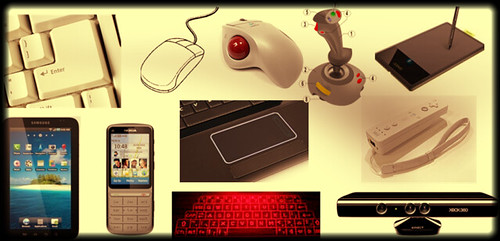 Common input devices used in offices and homes (Image: Silver Blu3, CC BY-SA 2.0, via Openverse)
1.2 Output Devices
These devices display or print results. Examples:
- Monitor (screen)
- Printer
- Speaker
- Projector
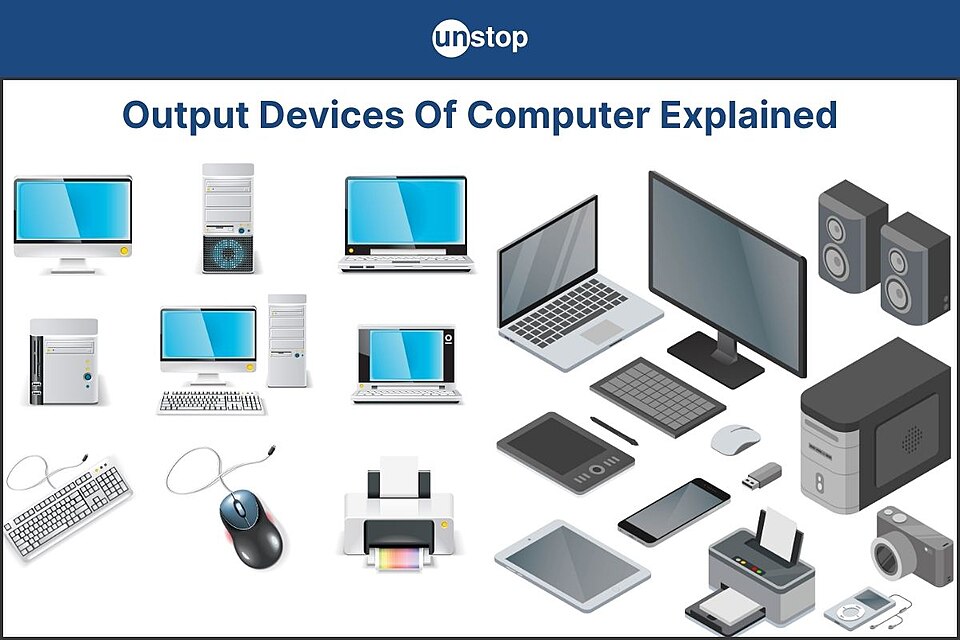 Output devices used in schools and businesses (Image: Theloc250518, CC0, via Wikimedia Commons)
1.3 Central Processing Unit (CPU)
The CPU is the brain of the computer. It performs:
- Arithmetic operations (e.g., addition, multiplication).
- Logical operations (e.g., comparisons like "Is A > B?").
- Control operations (managing other hardware).
How CPU Works:
- Fetches data from memory.
- Processes (executes) instructions.
- Stores results back in memory.
1.4 Memory (RAM vs. ROM)
| Type | Full Form | Purpose | Volatile? | Example |
|---|---|---|---|---|
| RAM | Random Access Memory | Temporary storage for running programs | Yes (loses data when powered off) | 8GB RAM in a laptop |
| ROM | Read-Only Memory | Permanent storage for startup instructions | No (data remains even when powered off) | BIOS chip in a motherboard |
Why is RAM important?
- The more RAM, the more programs you can run simultaneously (e.g., gaming + streaming).
- Example: A 2GB RAM computer struggles with modern games, but an 8GB RAM computer handles them smoothly.
1.5 Storage Devices
These store data permanently (even when the computer is off). Examples:
- HDD (Hard Disk Drive) – Uses spinning disks (slower but cheaper).
- SSD (Solid State Drive) – Uses flash memory (faster but expensive).
- USB Drive – Portable storage.
- CD/DVD – Optical storage.
Comparison: HDD vs. SSD
| Feature | HDD | SSD |
|---|---|---|
| Speed | Slower (50–120 MB/s) | Faster (300–3500 MB/s) |
| Price | Cheaper | Expensive |
| Noise | Loud (spinning disks) | Silent |
| Durability | Fragile (moving parts) | Shock-resistant |
2. Software Components
Software is the instructions that tell hardware what to do. It is divided into two types:
2.1 System Software
Manages hardware and other software. Examples:
- Operating System (OS) – Controls all computer functions (e.g., Windows, Linux, macOS).
- Utilities – Help maintain the system (e.g., antivirus, disk cleanup).
How an OS Works:
- Booting – Loads when you turn on the computer.
- Memory Management – Allocates RAM to programs.
- Process Management – Runs multiple programs at once.
- Device Management – Controls printers, keyboards, etc.
2.2 Application Software
Performs specific tasks for users. Examples:
- Productivity Software – MS Word, Excel, PowerPoint.
- Entertainment – Games, video players.
- Specialized – Photoshop (design), MATLAB (engineering).
Comparison: System vs. Application Software
| Feature | System Software | Application Software |
|---|---|---|
| Purpose | Manages hardware/software | Performs user tasks |
| Examples | Windows, Linux, Antivirus | Chrome, Photoshop, Excel |
| Dependency | Required to run apps | Runs on top of system software |
3. Generations of Computers
Computers have evolved in four generations, each with new technology and improvements.
| Generation | Time Period | Technology Used | Size | Speed | Example |
|---|---|---|---|---|---|
| 1st | 1940–1956 | Vacuum Tubes | Room-sized | Slow | ENIAC |
| 2nd | 1956–1963 | Transistors | Smaller | Faster | IBM 1401 |
| 3rd | 1964–1971 | Integrated Circuits (IC) | Compact | Very Fast | Apple I, DEC PDP-8 |
| 4th | 1971–Present | Microprocessors | Tiny (PC/Laptop) | Extremely Fast | Modern smartphones, laptops |
Key Improvements per Generation:
- 1st Gen: Used vacuum tubes (hot, bulky, unreliable).
- 2nd Gen: Transistors replaced tubes (smaller, faster, cheaper).
- 3rd Gen: ICs (chips) made computers compact (e.g., minicomputers).
- 4th Gen: Microprocessors led to personal computers (PCs).
4. Types of Computers
Computers are classified based on size, speed, and purpose:
| Type | Size | Speed | Example Uses |
|---|---|---|---|
| Supercomputer | Very Large | Extremely Fast | Weather forecasting, nuclear research |
| Mainframe | Large | Very Fast | Banking, government databases |
| Minicomputer | Medium | Fast | Small business networks |
| Microcomputer | Small (PC/Laptop) | Moderate | Home, office, gaming |
| Embedded Computer | Tiny (inside devices) | Slow | Microwaves, washing machines, cars |
Why Do We Need Different Types?
- Supercomputers solve complex scientific problems.
- Laptops/PCs are used for daily tasks (studying, work).
- Embedded systems control small devices (e.g., smartwatches).
5. Analog vs. Digital Computers
| Feature | Analog Computer | Digital Computer |
|---|---|---|
| Data Representation | Continuous signals (e.g., temperature) | Discrete signals (0s and 1s) |
| Accuracy | Less precise (errors accumulate) | Highly precise |
| Speed | Fast for real-time tasks | Slower but more reliable |
| Example | Old thermometers, speedometers | Modern laptops, smartphones |
Why Are Digital Computers More Popular?
- Reliable (no signal degradation).
- Versatile (can handle text, numbers, images).
- Programmable (can be updated with new software).
6. Applications of Computers
Computers are used in every field. Here are three key areas:
6.1 Education
- E-learning: Online courses (e.g., Khan Academy, NEB’s own portal).
- Research: Access to digital libraries (e.g., Google Scholar).
- Simulations: Virtual labs for science experiments.
6.2 Business
- Accounting: Software like Tally for financial records.
- Marketing: Social media ads, email campaigns.
- E-commerce: Online shopping (e.g., Daraz, Sastodeal).
6.3 Healthcare
- Diagnosis: AI helps detect diseases (e.g., cancer from X-rays).
- Patient Records: Digital health records (e.g., hospital management systems).
- Telemedicine: Video consultations with doctors.
7. NEB Exam Tips for Unit 1
The NEB exam tests definitions, comparisons, and applications. Here’s how to score full marks:
Common Question Types & How to Answer
Define and Differentiate
- Example Question: "Differentiate between RAM and ROM with examples."
- Answer Structure:
RAM (Random Access Memory) is a temporary memory that stores data while the computer is on. It is volatile, meaning data is lost when the power is turned off. Example: 8GB RAM in a laptop.
ROM (Read-Only Memory) is a permanent memory that stores firmware (startup instructions). It is non-volatile, meaning data remains even when powered off. Example: BIOS chip in a motherboard.
Short Answer on Generations
- Example Question: "Write a short note on the second generation of computers."
- Answer Structure:
The second generation (1956–1963) used transistors instead of vacuum tubes. Key features:
- Smaller and faster than first-generation computers.
- More reliable (less heat, no frequent breakdowns).
- Example: IBM 1401, used in business data processing.
Diagram-Based Questions
- Example Question: "Draw and label the block diagram of a computer system."
- Answer:
Labels:
- Input → CPU → Memory → Storage → CPU → Output → User.
Application-Based Questions
- Example Question: "How are computers used in education? Give three examples."
- Answer:
Computers in education help in:
- E-learning: Students can take online classes (e.g., NEB’s digital portal).
- Research: Access to online libraries and databases (e.g., Google Scholar).
- Simulations: Virtual labs for science experiments (e.g., physics simulations).
Practice Questions (NEB Style)
Fill in the Blanks
- The brain of a computer is called the ______. (Answer: CPU)
- ______ is a volatile memory. (Answer: RAM)
- The first generation of computers used ______. (Answer: vacuum tubes)
True or False
- ROM is a temporary memory. (False – ROM is permanent.)
- Supercomputers are used for everyday tasks like browsing. (False – They are used for scientific research.)
Short Answer
- What is the difference between an analog and a digital computer?
- List any three input devices and three output devices.
Long Answer
- Explain the four generations of computers with examples. Draw a simple table to compare them.
- Describe the role of an operating system in a computer system. Give two examples of operating systems.
Summary
- Hardware = Physical parts (CPU, RAM, storage, input/output).
- Software = Programs (OS, applications).
- Generations = Evolution from vacuum tubes to microprocessors.
- Applications = Education, business, healthcare.
- Exam Tip: Memorize definitions, comparisons, and diagrams for full marks!
Good luck with your NEB exam! 🚀
Based on the NEB +2 Management syllabus for Computer Science (Comp), unit 1.
Discussion
Loading…