Foundation of Information TechnologyUnit 412 min read
Computer Hardware & Peripherals: Components, Functions & Applications
Unit 4 of Foundation of Information Technology covers the core components of computer hardware (CPU, memory, storage, input/output devices) and peripherals, their functions, classifications, and real-world applications in Nepalese and global tech ecosystems like eSewa, Daraz, and Ncell.
TAKEAWAYS:
- Understand the five core hardware components (CPU, memory, storage, input/output, and peripherals) and their roles in processing data.
- Differentiate between primary (RAM, cache) and secondary (HDD, SSD) storage based on speed, volatility, and cost.
- Explain how input/output devices (keyboard, mouse, printers, monitors) interact with the CPU via system buses.
- Compare parallel vs. serial ports, USB types, and wireless peripherals (Bluetooth, Wi-Fi) using real-world examples.
- Analyze hardware performance metrics (clock speed, cache size, bus width) and their impact on system efficiency.
- Link hardware concepts to Nepalese tech applications (e.g., Ncell’s SIM cards, Daraz’s servers, eSewa’s payment terminals).
1. Computer Hardware: The Core Components
A computer system is built around five fundamental hardware components, each with a specialized role. These components work together to input, process, store, and output data. Below is a breakdown of each, visualized for clarity.
1.1 Central Processing Unit (CPU)
The CPU (Central Processing Unit) is the "brain" of the computer, responsible for executing instructions and performing calculations. It consists of:
- Arithmetic Logic Unit (ALU): Performs mathematical and logical operations.
- Control Unit (CU): Manages instruction execution and data flow.
- Registers: Ultra-fast temporary storage for immediate operations.
How it works: The CPU fetches instructions from memory, decodes them, executes the operation, and stores the result—this cycle repeats in clock cycles (measured in GHz). The clock speed (e.g., 3.5 GHz) determines how many cycles the CPU can perform per second.
Real-world example: When you use eSewa to pay your electricity bill, the CPU in the eSewa server processes your transaction in milliseconds, verifying your account, deducting the amount, and updating the NTC database. A slower CPU would cause delays in processing thousands of transactions simultaneously.
1.2 Memory (Primary Storage)
Memory is divided into two types:
- Primary Memory (Volatile): Directly accessible by the CPU.
- RAM (Random Access Memory): Temporary, fast, and volatile (loses data when powered off).
- Cache Memory: Ultra-fast memory inside the CPU (L1, L2, L3 caches) to reduce latency.
- Secondary Memory (Non-Volatile): Permanent storage.
- HDD (Hard Disk Drive): Mechanical, slower but cheaper (uses magnetic storage).
- SSD (Solid State Drive): Faster, no moving parts (uses flash memory).
Comparison Table:
| Type | Speed | Volatility | Capacity | Cost | Example Use Case |
|---|---|---|---|---|---|
| RAM | Very Fast (ns) | Volatile | Up to 128GB | High | Running applications (e.g., Photoshop) |
| Cache | Fastest (ps) | Volatile | KB to MB | Very High | Speeding up CPU operations |
| HDD | Slow (ms) | Non-Volatile | TBs | Low | Storing large files (e.g., movies) |
| SSD | Fast (µs) | Non-Volatile | Up to 8TB | Medium | OS and frequently used apps |
Worked Example: Suppose your computer has:
- CPU: Intel Core i5 (3.2 GHz, 6MB cache)
- RAM: 16GB DDR4
- Storage: 1TB SSD + 2TB HDD
Scenario: You open Daraz to order a product.
- The CPU fetches the Daraz app from the SSD (fast access).
- The app loads into RAM for quick processing.
- When you click "Buy Now," the CPU processes the payment via cache for speed.
- Your order details are stored in the HDD (long-term storage).
1.3 Input/Output (I/O) Devices
I/O devices allow users to interact with the computer by inputting data (keyboards, mice) or outputting data (monitors, printers).
Classification:
| Input Devices | Output Devices | Storage Devices |
|---|---|---|
| Keyboard | Monitor | HDD |
| Mouse | Printer | SSD |
| Microphone | Speaker | USB Flash Drive |
| Scanner | Projector | CD/DVD Drive |
| Webcam | Headphones |
How I/O Works: Devices communicate with the CPU via ports (physical connectors) or wireless protocols (Bluetooth, Wi-Fi). The system bus (data, address, control buses) transfers data between components.
Real-world example: When you use Khalti to scan a QR code for payment:
- Your phone’s camera (input device) captures the QR code.
- The CPU processes the data via the system bus.
- The payment is sent wirelessly (via Wi-Fi/Bluetooth) to Khalti’s server.
- The monitor (output) displays "Payment Successful."
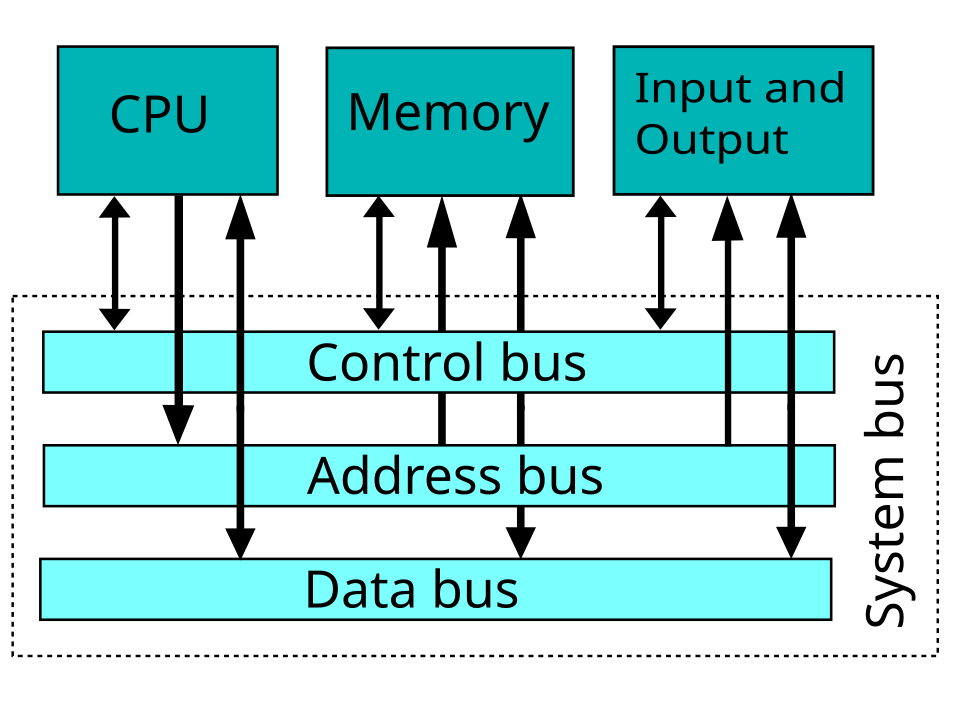 Data, address, and control buses connecting CPU, RAM, and I/O devices. (Image: W Nowicki, CC BY-SA 3.0, via Wikimedia Commons)
2. Peripherals: Extending Computer Functionality
Peripherals are auxiliary devices that enhance a computer’s capabilities. They can be input, output, or storage devices.
2.1 Types of Peripherals
| Category | Examples | Connection Type |
|---|---|---|
| Input | Keyboard, Mouse, Scanner, Microphone | USB, Wireless (Bluetooth) |
| Output | Monitor, Printer, Speaker, Projector | HDMI, USB, Wi-Fi |
| Storage | External HDD, SSD, USB Flash Drive | USB, Thunderbolt, SATA |
| Communication | Modem, Network Card, Router | Ethernet, Wi-Fi, Cellular |
Worked Example: Ncell’s SIM Card Reader:
- A SIM card is a storage peripheral that holds subscriber data.
- When you insert a SIM into your phone:
- The CPU reads the SIM’s data via the SIM slot (serial interface).
- The system bus transfers authentication details to the network card.
- Your phone connects to Ncell’s 4G/5G network for calls/data.
2.2 Ports and Interfaces
Computers use different ports to connect peripherals. Key types include:
| Port Type | Speed | Use Case | Example Devices |
|---|---|---|---|
| USB (Universal Serial Bus) | Slow to Fast (USB 2.0: 480 Mbps, USB 3.0: 5 Gbps, USB 4: 40 Gbps) | Keyboards, mice, flash drives | USB Flash Drive, Webcam |
| HDMI | Very Fast (10.2 Gbps) | Video/audio output | Monitor, TV, Projector |
| Thunderbolt | Extremely Fast (40 Gbps) | High-speed data transfer | External SSDs, GPUs |
| Ethernet | Fast (1 Gbps to 10 Gbps) | Wired internet | Router, Network Switch |
| Wi-Fi/Bluetooth | Medium (Wi-Fi 6: 9.6 Gbps, Bluetooth 5: 2 Mbps) | Wireless connectivity | Laptops, Smartphones |
Real-world example: Daraz’s Warehouse Management:
- Barcode scanners (input peripherals) read product codes via USB/Bluetooth.
- Printers (output peripherals) generate shipping labels using Ethernet/Wi-Fi.
- Servers use Thunderbolt/SSDs for fast data processing of thousands of orders.
3. Hardware Performance and Optimization
The speed and efficiency of a computer depend on:
- CPU Performance: Clock speed, number of cores, cache size.
- Memory Speed: RAM type (DDR4 vs. DDR5), latency.
- Storage Speed: SSD vs. HDD, NVMe vs. SATA.
- Bus Speed: Data transfer rate between components.
Comparison of Storage Technologies:
| Technology | Speed (Read/Write) | Cost per GB | Durability | Use Case |
|---|---|---|---|---|
| HDD | 80-160 MB/s | Low | Moderate | Bulk storage (e.g., backups) |
| SATA SSD | 500 MB/s | Medium | High | OS and apps |
| NVMe SSD | 3000+ MB/s | High | Very High | Gaming, video editing |
| USB Flash Drive | 10-400 MB/s | Medium | Low | Portable file transfer |
Worked Example: Nepal Stock Exchange (NEPSE) Trading System:
- High-frequency trading requires low-latency storage (NVMe SSDs) to process buy/sell orders in microseconds.
- Servers use multi-core CPUs (e.g., Intel Xeon) to handle thousands of transactions simultaneously.
- RAM is optimized (64GB+) to keep trading data in fast memory.
4. Real-World Applications in Nepal
4.1 eSewa: Hardware in Digital Payments
- Payment Terminal: Uses a CPU, RAM, and card reader (magnetic stripe/NFC) to process transactions.
- Server: Relies on high-speed SSDs, multi-core CPUs, and redundant power supplies for 24/7 uptime.
- Wireless Connectivity: Uses Wi-Fi/4G to send transaction data to eSewa’s central database.
4.2 Daraz: E-Commerce Hardware Infrastructure
- Web Servers: Use RAID arrays (multiple HDDs/SSDs) for data redundancy.
- Load Balancers: Distribute traffic across multiple CPUs to handle peak orders (e.g., during sales).
- Shipping Tracking: Uses barcode scanners and RFID tags (wireless peripherals) for inventory management.
4.3 Ncell: Mobile Network Hardware
- Base Stations (Cell Towers): Contain high-performance CPUs, RAM, and fiber-optic connections to handle calls/data.
- SIM Cards: Use EEPROM (Electrically Erasable Programmable Read-Only Memory) for storing subscriber data.
- Backhaul Networks: Use Ethernet and microwave links for high-speed data transfer between towers.
Exam Tip
- Diagrams are key: Always draw and label diagrams for:
- CPU architecture (ALU, CU, registers).
- System bus connections (CPU ↔ RAM ↔ I/O).
- Comparison tables (RAM vs. SSD vs. HDD).
- Real-world links: Examiners love connections to Nepalese tech (eSewa, Daraz, Ncell). Mention how hardware components enable their services.
- Performance metrics: Know how to calculate:
- Clock cycles: .
- Data transfer rates: Compare USB 2.0 (480 Mbps) vs. USB 3.0 (5 Gbps).
- Common mistakes to avoid:
- Confusing RAM (volatile) with ROM (non-volatile).
- Mixing up HDMI (video) with USB (data).
- Forgetting that cache is inside the CPU, not separate memory.
- Short-answer tips:
- For "Define CPU," mention ALU + CU + registers.
- For "Differentiate HDD and SSD," use speed, cost, and durability.
- For "Explain system bus," describe data, address, and control buses.
Final Note: Hardware is the physical foundation of all IT systems. Whether it’s eSewa’s payment terminals, Daraz’s servers, or Ncell’s cell towers, understanding how components like CPUs, RAM, and peripherals work helps you appreciate—and troubleshoot—real-world technology. Practice drawing diagrams and relate concepts to Nepalese tech to ace your exam!
Based on the TU BIM syllabus for Foundation of Information Technology (IT231), unit 4.
Discussion
Loading…