Web Technology IIUnit 212 min read
CSS: Selectors, Box Model, Layouts & Styling Techniques
Unit 2 of Web Technology II covers CSS fundamentals—selectors (ID vs. class), the CSS Box Model, positioning (static/relative/fixed), and embedding CSS (inline, internal, external). Learn with real-world examples, visuals, and exam-focused traces.
TAKEAWAYS
- CSS controls presentation (colors, fonts, layouts) while HTML defines structure; use selectors (ID/class) to target elements precisely.
- The CSS Box Model divides elements into content, padding, border, margin—critical for spacing and sizing.
- Positioning properties (
static,relative,fixed,absolute) dictate how elements flow or anchor to the viewport. - Embedding CSS has trade-offs: inline (quick but messy), internal (scoped but repetitive), external (scalable but requires linking).
- Real-world use: eSewa’s payment buttons (CSS styling), Daraz’s product grids (Box Model), and Pathao’s fixed-position maps (CSS positioning).
1. What is CSS? Why Use It?
CSS (Cascading Style Sheets) is a styling language that separates content (HTML) from presentation (design). Without CSS, every webpage would look like plain text with default browser styles.
How CSS Works
CSS rules consist of:
- Selector (targets HTML elements, e.g.,
p,.class,#id). - Declaration block (styles inside
{ }, e.g.,color: blue;).
stateDiagram-v2
    [*] --> CSS_Applied: Browser reads HTML
    CSS_Applied --> Selector_Matched: CSS file linked or embedded
    Selector_Matched --> Style_Applied: Rules cascade (specificity wins)
    Style_Applied --> Rendered_Page: Final output
Why CSS?
| Problem Without CSS | Solution With CSS |
|---|---|
| Repetitive HTML styling | Reusable styles via classes/IDs |
| Inconsistent layouts | Precise control over spacing, fonts, colors |
| Slow development | Rapid prototyping with preprocessors (Sass) |
| Poor accessibility | Semantic HTML + CSS for screen readers |
2. CSS Selectors: Targeting Elements
Selectors pinpoint HTML elements to apply styles. Master these for exams and real projects.
Key Selectors
| Selector Type | Syntax | Example | Specificity | Use Case |
|---|---|---|---|---|
| Type (Element) | element |
p { color: red; } |
Low | Style all <p> tags |
| Class | .classname |
.btn { background: blue; } |
Medium | Reusable styles (e.g., buttons) |
| ID | #idname |
#header { font-size: 24px; } |
High | Unique elements (e.g., page headers) |
| Descendant | parent child |
nav a { color: green; } |
Medium | Style links inside <nav> |
| Attribute | [attr="value"] |
input[type="email"] { border: 1px solid red; } |
Low | Style based on attributes (e.g., forms) |
Example: Styling a Navigation Bar
<!DOCTYPE html>
<html>
<head>
    <style>
        /* Class selector for all nav items */
        .nav-item {
            padding: 10px;
            margin: 5px;
        }
        /* ID selector for the logo */
        #logo {
            font-weight: bold;
            color: #0066cc;
        }
    </style>
</head>
<body>
    <nav>
        <div id="logo">MySite</div>
        <a class="nav-item" href="#">Home</a>
        <a class="nav-item" href="#">About</a>
    </nav>
</body>
</html>
3. The CSS Box Model: The Foundation of Layouts
Every HTML element is a box with four layers:
- Content: The actual text/image.
- Padding: Space between content and border.
- Border: Edge around padding.
- Margin: Space outside the border (collapses with adjacent margins).
Box Model in Action: Daraz Product Card
.product-card {
    width: 200px;
    padding: 15px;       /* Space inside the card */
    border: 1px solid #ddd;
    margin: 10px;        /* Space between cards */
    background: white;
}
Why it matters:
- Padding ensures text doesn’t touch the border.
- Margin creates gaps between product cards (like Daraz’s grid).
- Border adds visual separation.
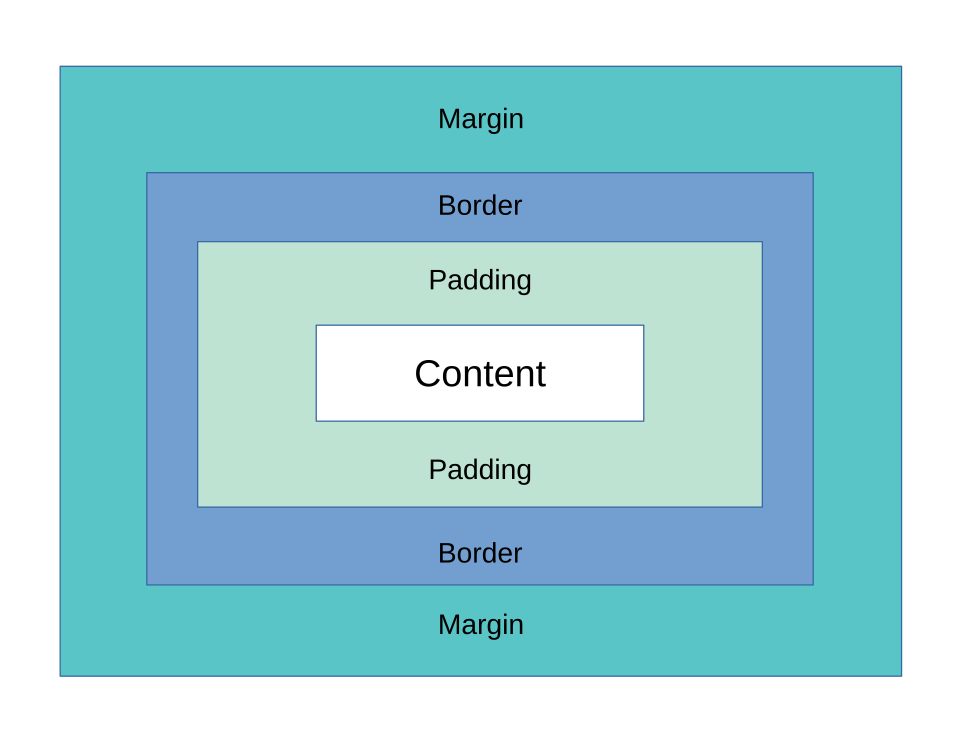 A box with labeled content, padding, border, and margin areas. (Image: Charles Calvert, CC BY-SA 4.0, via Wikimedia Commons)
4. CSS Positioning: Static vs. Relative vs. Fixed
Positioning controls where elements appear on the page.
| Property | Behavior | Example Use Case | Exam Tip |
|---|---|---|---|
static |
Default flow (left-to-right, top-to-bottom) | Normal text paragraphs | Most elements use this by default. |
relative |
Moves relative to its original position (other elements shift) | Tooltips, dropdown menus | Use top, left, right, bottom values. |
absolute |
Moves relative to the nearest positioned ancestor (takes out of flow) | Modals, custom dropdowns | Parent must have position: relative/absolute. |
fixed |
Stays in place relative to the viewport (scrolls with page) | Sticky headers, chat widgets (e.g., Pathao) | Ignores scrolling; use z-index for layers. |
Worked Example: Pathao’s Fixed-Position Map
.map-container {
    position: fixed;
    bottom: 0;
    left: 0;
    width: 100%;
    height: 200px;
    z-index: 1000; /* Ensures it stays above other content */
}
Visual:
5. Embedding CSS: Inline, Internal, External
Choose the method based on scope and maintainability.
| Method | How to Use | Pros | Cons | Example |
|---|---|---|---|---|
| Inline | Directly in HTML elements via style="" |
Overrides other CSS; quick fixes | Hard to maintain; not reusable | <p style="color: red;">Text</p> |
| Internal | Inside <style> tags in <head> |
Scoped to one page; no extra files | Repetitive for large sites | <style> p { color: red; } </style> |
| External | Linked via <link rel="stylesheet" href="styles.css"> |
Reusable across pages; efficient | Requires file management | styles.css linked to multiple HTML files |
Example: External CSS for eSewa’s Payment Button
HTML (payment.html):
<!DOCTYPE html>
<html>
<head>
    <link rel="stylesheet" href="esewa.css">
</head>
<body>
    <button class="esewa-btn">Pay with eSewa</button>
</body>
</html>
CSS (esewa.css):
.esewa-btn {
    background: #ff6600;
    color: white;
    padding: 12px 24px;
    border: none;
    border-radius: 4px;
    font-weight: bold;
}
Why external?
- eSewa’s design is reused across bill payments, top-ups, and transfers.
- Changing the button style in one file updates all pages.
6. CSS Layouts: Normal vs. Basic Box Layout
Normal Box Layout
- Default behavior: Margins collapse, borders don’t overlap.
- Use case: Simple grids (e.g., blog post layouts).
.box {
    width: 200px;
    margin: 10px; /* Margins collapse if adjacent */
    border: 1px solid black;
}
Basic Box Layout
- Explicit control: Use
box-sizing: border-boxto include padding/border in width/height. - Use case: Precise designs (e.g., NTC’s service cards).
.card {
    width: 200px;
    padding: 10px;
    border: 2px solid #333;
    box-sizing: border-box; /* Padding + border = 200px total */
}
Visual:
7. In the Real World
1. eSewa’s Payment Buttons (CSS Classes)
- Idea:
.esewa-btnclass applies consistent styling (colors, padding) across all payment flows. - How: External CSS file (
esewa.css) defines.esewa-btnfor bill payments, top-ups, and transfers. - Impact: Users recognize the button instantly; developers update styles in one place.
2. Daraz’s Product Grid (CSS Box Model)
- Idea:
margin: 10pxandpadding: 15pxcreate consistent spacing between product cards. - How: Each
.product-cardhas fixedwidth: 250px+box-sizing: border-boxto ensure uniformity. - Impact: Clean, scrollable grid that works on mobile/desktop.
3. Pathao’s Rider Map (Fixed Positioning)
- Idea:
position: fixedkeeps the map pinned to the bottom of the screen. - How:
.map-container { bottom: 0; left: 0; height: 200px; }ensures the map stays visible while scrolling. - Impact: Riders see their location and destination without scrolling back up.
4. NTC’s Service Portal (Relative Positioning)
- Idea: Dropdown menus for "Bill Payment" or "Complaint" use
position: relativefor the parent andabsolutefor the dropdown. - How:
.service-menu { position: relative; display: inline-block; } .service-dropdown { position: absolute; top: 100%; left: 0; display: none; } - Impact: Menus appear on hover without breaking the layout.
8. Exam Tips
Common Pitfalls in Exams
Forgetting
box-sizing: border-box- Mistake: Assuming
width: 200pxincludes padding/border. - Fix: Always reset with
* { box-sizing: border-box; }in your CSS.
- Mistake: Assuming
Confusing
relativevs.absolute- Mistake: Using
absolutewithout a positioned parent. - Fix: Remember: absolute needs a relative/absolute ancestor.
- Mistake: Using
Selector Specificity Errors
- Mistake: ID and class both targeting the same element (ID wins, but may override unintentionally).
- Fix: Use classes for reusable styles; IDs for unique elements.
Margin Collapse
- Mistake: Adjacent vertical margins merge (e.g., two
<div>s withmargin-bottom: 10px). - Fix: Add
borderorpaddingto prevent collapse.
- Mistake: Adjacent vertical margins merge (e.g., two
High-Score Strategies
- For "Differentiate" Questions: Use a table (like the one above for positioning).
- For "Write CSS for X" Questions:
- Start with a selector (e.g.,
.btn). - Add Box Model properties (
padding,margin,border). - Include positioning if needed (
fixedfor headers,relativefor menus).
- Start with a selector (e.g.,
- For Box Model Questions: Draw the labeled box diagram in your answer.
- For Embedding CSS: Always show all three methods (inline, internal, external) with examples.
Past Exam Patterns
| Question Type | What to Include |
|---|---|
| "Define CSS Box Model" | All 4 areas (content, padding, border, margin) + a diagram. |
| "Class vs. ID selector" | Table with specificity, reuse, and example code. |
| "Embedding CSS" | Code snippets for inline, internal, and external with <link> tag. |
| "Positioning properties" | Mermaid diagram of static/relative/absolute/fixed + real-world use (e.g., Pathao). |
Based on the TU BIT syllabus for Web Technology II (BIT301), unit 2.
Discussion
Loading…