Computer ScienceUnit 59 min read
Application Packages: Types, Uses, and Popular Software
Unit 5 of Computer Science explores application packages—ready-made software tools for everyday tasks like word processing, spreadsheets, presentations, and databases. Learn their types, features, and how to choose the right one for different needs, with examples from Microsoft Office, LibreOffice, and more.
TAKEAWAYS:
- Application packages are pre-built software programs designed to perform specific tasks efficiently.
- They include word processors (e.g., MS Word), spreadsheets (e.g., MS Excel), presentation tools (e.g., MS PowerPoint), and database managers (e.g., MS Access).
- Popular suites like Microsoft Office and LibreOffice bundle multiple applications for seamless integration.
- These tools save time, reduce errors, and improve productivity compared to manual methods.
- Understanding their features helps in selecting the right software for academic, business, or personal use.
- NEB exams test definitions, comparisons, and practical applications of these packages.
What Are Application Packages?
Application packages (or application software) are programs designed to perform specific tasks for users. Unlike system software (like operating systems), which manage hardware and system resources, application software helps users accomplish real-world tasks.
Example:
- Writing an essay → Word Processor (e.g., Microsoft Word).
- Managing budgets → Spreadsheet (e.g., Microsoft Excel).
- Creating slides for a presentation → Presentation Software (e.g., Microsoft PowerPoint).
Types of Application Packages
Application packages can be categorized based on their functions. Here are the most common types:
1. Word Processing Software
Used for creating, editing, and formatting text documents like essays, letters, and reports.
Example:
- Microsoft Word
- LibreOffice Writer
- Google Docs
Features:
- Typing, spell-check, and grammar suggestions.
- Formatting tools (fonts, alignment, bullets).
- Inserting images, tables, and charts.
2. Spreadsheet Software
Used for organizing data in rows and columns, performing calculations, and creating charts.
Example:
- Microsoft Excel
- LibreOffice Calc
- Google Sheets
Features:
- Cells for data entry.
- Formulas (e.g.,
=SUM(A1:A10)). - Pivot tables and data analysis tools.
3. Presentation Software
Used to create slideshows for presentations, lectures, or meetings.
Example:
- Microsoft PowerPoint
- LibreOffice Impress
- Google Slides
Features:
- Slide layouts and themes.
- Animations and transitions.
- Speaker notes and timers.
4. Database Management Software
Used to store, organize, and retrieve data efficiently.
Example:
- Microsoft Access
- MySQL
- LibreOffice Base
Features:
- Tables for data storage.
- Queries to extract specific data.
- Forms and reports for user-friendly access.
5. Graphics Software
Used for creating and editing images, drawings, and designs.
Example:
- Adobe Photoshop (for photo editing).
- CorelDRAW (for vector graphics).
- GIMP (free alternative to Photoshop).
Features:
- Drawing tools (pencil, brush, shapes).
- Photo retouching (crop, resize, filters).
- Animation and 3D modeling (in advanced software).
6. Multimedia Software
Used for creating and editing audio, video, and other multimedia content.
Example:
- Adobe Premiere Pro (video editing).
- Audacity (audio editing).
- VLC Media Player (playing multimedia files).
Features:
- Editing audio/video clips.
- Adding effects and transitions.
- Exporting in different formats.
7. Utility Software
Helps perform maintenance tasks like cleaning disks, managing files, or optimizing system performance.
Example:
- CCleaner (cleaning junk files).
- WinRAR (compressing files).
- Antivirus software (protecting against malware).
Features:
- Disk cleanup and defragmentation.
- File compression and extraction.
- System optimization tools.
Popular Application Suites
Many software packages are bundled together as suites for better compatibility and ease of use. Here are two popular ones:
| Suite | Components | Pros | Cons |
|---|---|---|---|
| Microsoft Office | Word, Excel, PowerPoint, Access, Outlook, OneNote | User-friendly, widely used, powerful features | Expensive, requires subscription for updates |
| LibreOffice | Writer, Calc, Impress, Base, Draw, Math | Free and open-source, lightweight | Fewer advanced features than Microsoft Office |
How to Choose the Right Application Package
Selecting the right software depends on your needs, budget, and technical skills. Here’s a quick guide:
Identify Your Needs:
- Do you need word processing? → Choose Word or Writer.
- Do you need spreadsheets? → Choose Excel or Calc.
- Do you need presentations? → Choose PowerPoint or Impress.
Budget:
- Free options: LibreOffice, Google Docs, GIMP.
- Paid options: Microsoft Office, Adobe Suite.
Compatibility:
- Check if the software works with your operating system (Windows, macOS, Linux).
- Ensure files can be shared with others (e.g.,
.docxfor Word,.xlsxfor Excel).
Ease of Use:
- Beginners may prefer Google Docs or LibreOffice due to simpler interfaces.
- Advanced users may opt for Microsoft Office or Adobe Suite for more features.
Advantages and Disadvantages of Application Packages
| Advantages | Disadvantages |
|---|---|
| Save time and effort | Some are expensive |
| Reduce errors in calculations | Require training to use effectively |
| Improve productivity | May have compatibility issues |
| Provide templates and automation tools | Some suites are resource-heavy |
Practical Examples
Example 1: Writing an Essay
Task: Write a 500-word essay on "The Importance of Education." Steps:
- Open Microsoft Word or LibreOffice Writer.
- Type the title and use the Heading 1 style.
- Use the Spell Check tool to correct errors.
- Insert a table of contents using the Insert → Table of Contents option.
- Save the file as
Essay.docx.
Example 2: Creating a Budget in Excel
Task: Track monthly expenses. Steps:
- Open Microsoft Excel or LibreOffice Calc.
- Create columns for Item, Category, Amount, and Date.
- Enter data for each expense (e.g., Rent: $500, Groceries: $200).
- Use the SUM function to calculate total expenses:
=SUM(B2:B10). - Create a pie chart to visualize spending.
NEB Board-Style Questions
Short Answer Questions
- Define application packages. Give two examples.
- What is the difference between Microsoft Word and LibreOffice Writer?
- List three features of Microsoft Excel.
- Why is database management software useful in schools?
Long Answer Questions
- Explain the types of application packages with examples. How do they help in daily life?
- Compare Microsoft Office and LibreOffice. Which one would you recommend for a student and why?
- Describe the steps to create a presentation using Microsoft PowerPoint. What are the advantages of using presentation software?
Practical Questions
- Create a simple spreadsheet in Excel or Calc to calculate the total marks of a student in five subjects.
- Write a short paragraph in Word or Writer and format it with headings, bullets, and images.
- Design a database table for a library management system with fields like Book ID, Title, Author, and Availability.
Exam Tip
- Definitions: Know the definitions of key terms like word processor, spreadsheet, database, and presentation software.
- Comparisons: Be ready to compare popular suites (e.g., Microsoft Office vs. LibreOffice).
- Features: List features of each type of software (e.g., Excel formulas, Word formatting tools).
- Practical Applications: Understand how each software is used in real life (e.g., Excel for budgets, Word for essays).
- Diagrams: Practice drawing simple diagrams like spreadsheets, database tables, or presentation slide structures.
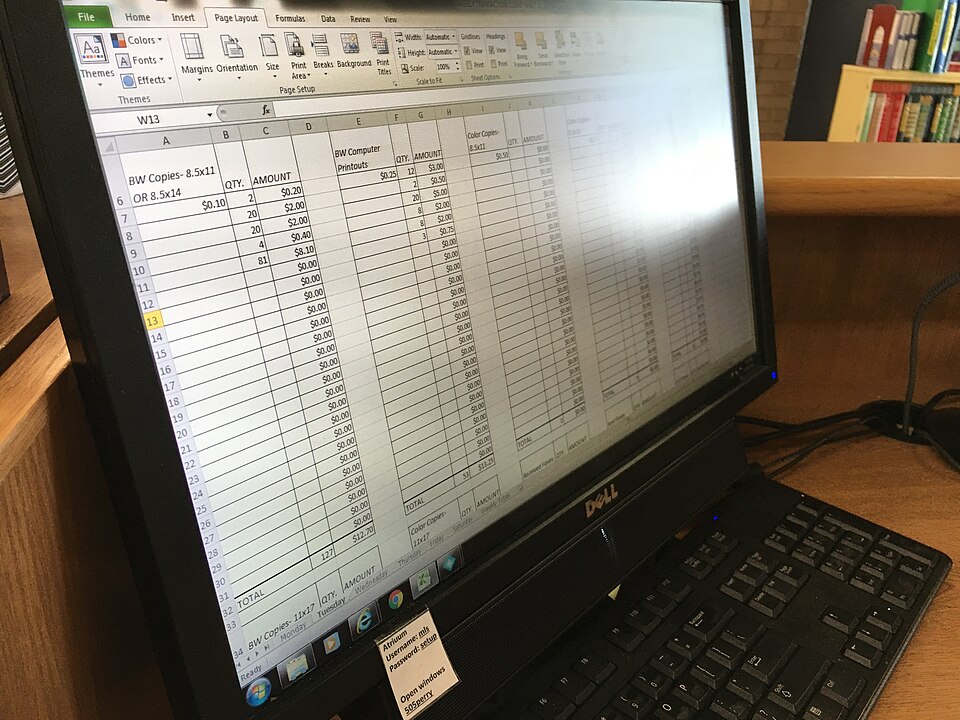 A sample Excel sheet with formulas and charts. (Image: Texas State Library and Archives Commission from Austin, TX,, CC BY 2.0, via Wikimedia Commons)
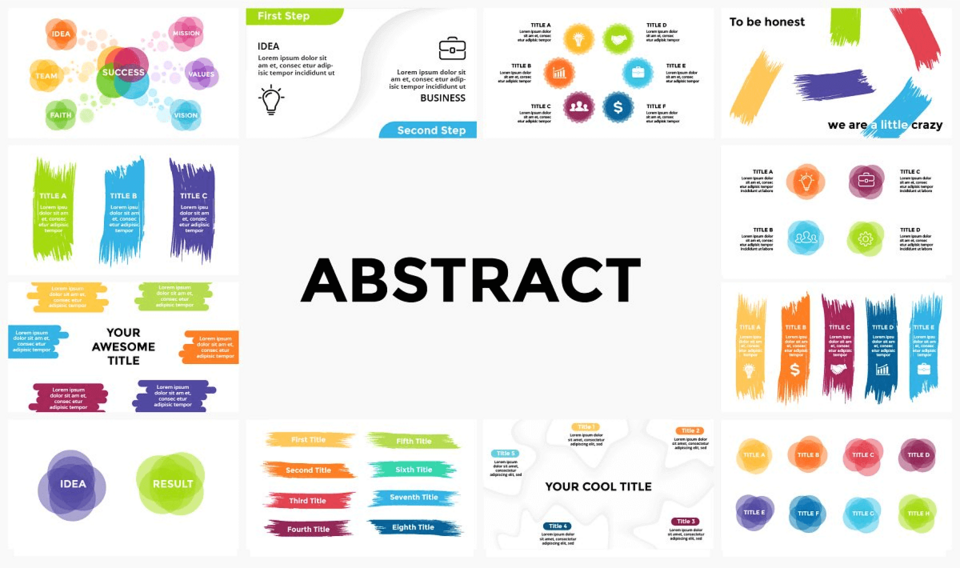 A slide from a PowerPoint presentation with text and images. (Image: Simple Slides, CC BY-SA 4.0, via Wikimedia Commons)
Based on the NEB +2 Science syllabus for Computer Science (Comp), unit 5.
Discussion
Loading…